
How to invite (add) a user to the workspace
Step 1: Sign in
- Sign in to the Behavio platform with your account.
- If you have access to multiple workspaces, first switch to the workspace where you want to add the user.
Step 2: Open Members
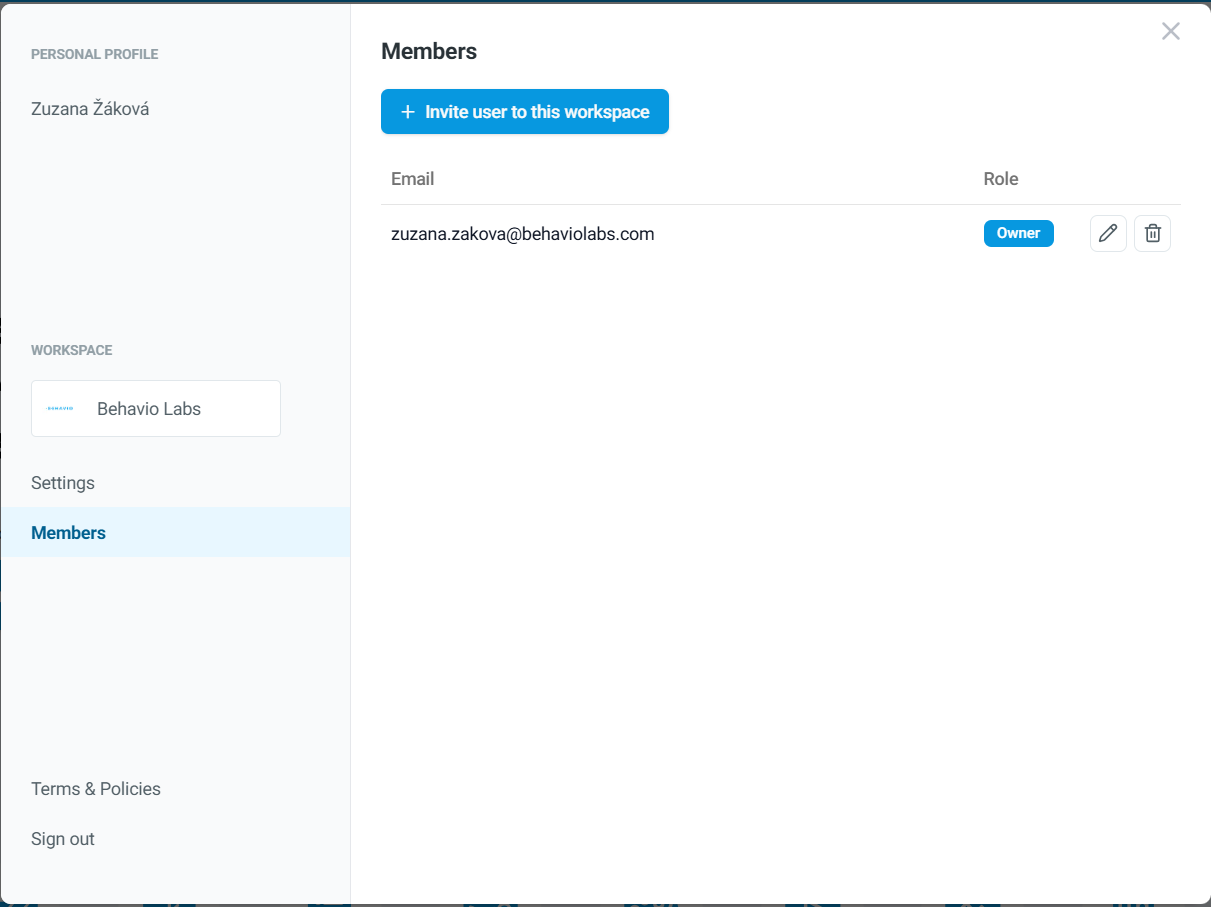
- In the workspace, click
My Account. - In the opened window, select the
Memberstab. You will see a list of all accounts that already have access to your workspace.
Step 3: Open the invitation
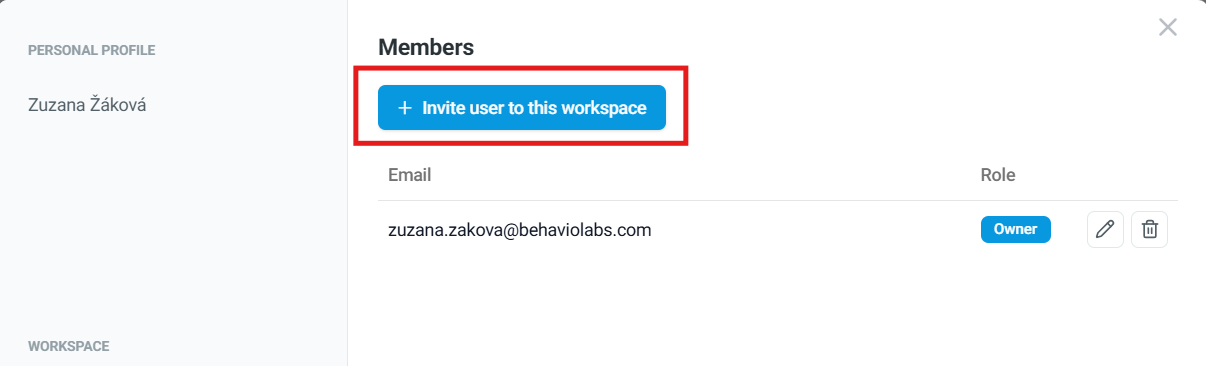
- Click
Invite user to this workspace.
Step 4: Enter email addresses
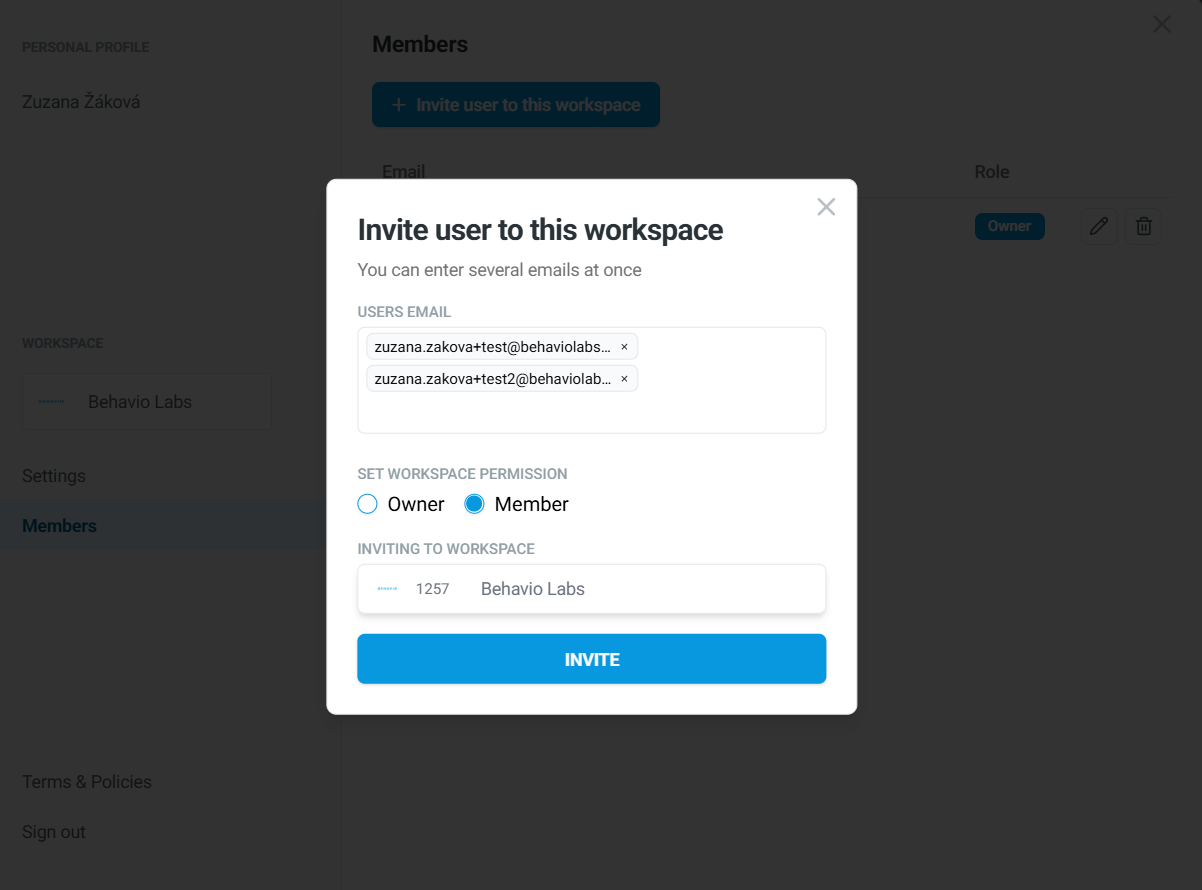
- Enter the email addresses of the people you want to invite.
- You can add multiple addresses at once.
Step 5: Choose a permission level and Send the invitation
- Member permission – the user can sign in and view reports.
- Owner permission – the user can also invite new users, remove existing users from the workspace, and change other users’ roles.
- Click
INVITE.
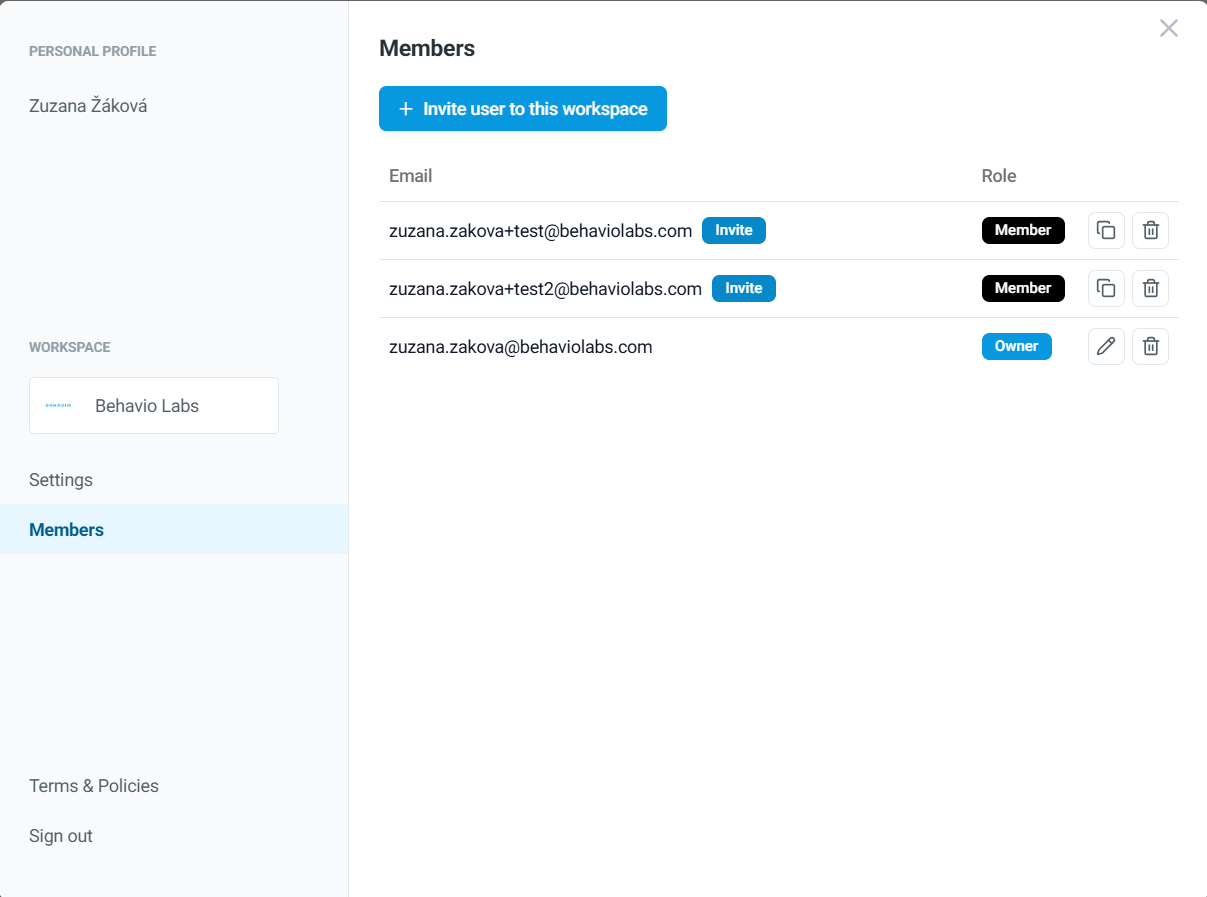
- You’ll see newly invited users in the Members list.
- Invited users have the
Invitelabel — this means the invitation email was sent but not accepted yet. - Important: The invitation is valid for 7 days. If it expires, you need to send a new invitation.
Step 6: The invited user must accept the invitation. For more information, please visit this page.
Step 7: What should you do if an invited user can't find the invitation email? For more details, please visit this page.